QuickBooks integration for 3PL WMS: the complete guide
Last Updated: May 6, 2026
QuickBooks integration for 3PL WMS connects your warehouse management system directly to QuickBooks, automating invoice generation, chart of accounts mapping, and multi-client billing sync. The result is a live accounting feed from your warehouse floor to your books, with no manual data entry in between.
For a 3PL, that definition matters more than it sounds. If your WMS and QuickBooks are not talking to each other in real time, someone on your team is manually exporting invoices, cleaning up spreadsheets, and reconciling discrepancies every billing cycle. That work adds up fast.
This guide covers what a real 3PL QuickBooks sync does, how QBO compares to QuickBooks Desktop, where most competitors fall short, and how to set up the integration in PackemWMS step by step.
Why 3PLs need QuickBooks integration in their WMS
QuickBooks holds roughly 80% of the small business accounting market in the US, according to Intuit’s published data. In the 3PL segment, the share is even higher. If you run a small-to-mid-size 3PL, there is a strong chance your bookkeeper, your CPA, and your clients all expect to see QuickBooks invoices at the end of every billing period.
The problem is that most WMS platforms were not built with 3PL billing in mind. They handle receiving, picking, shipping, and inventory. Accounting is an afterthought. So the connection to QuickBooks, when it exists at all, covers basic inventory counts but misses the complex multi-client invoicing that 3PL operations actually need.
Without a real 3PL QuickBooks sync, your workflow looks like this: close the billing period in your WMS, export a CSV, format it for import, upload it to QuickBooks, then reconcile any mismatches between the two systems. For a 3PL with 10 clients, that is easily three to five hours per billing cycle, every month.
A proper 3PL warehouse management software integration with QuickBooks eliminates that entire workflow. Invoices generate automatically when the billing period closes and push directly to the correct client accounts in QuickBooks. No CSV, no reformatting, no manual reconciliation.
That is the bar your WMS integration should clear. Most do not.
What a real QuickBooks integration does
Not all QuickBooks integrations are created equal. When a WMS vendor says they integrate with QuickBooks, it can mean anything from a full bidirectional sync to a basic inventory count push. For a 3PL, the following capabilities are what actually matter:
Chart of accounts mapping: Your WMS maps each fee type (storage, pick and pack, receiving, kitting, returns) to the correct account in your QuickBooks chart of accounts. Storage fees flow to a storage revenue account. Pick fees flow to a services revenue account.
Invoice auto-sync: When you close a billing period in your WMS, invoices generate automatically and sync to QuickBooks under the correct customer records. Line items on the invoice match the rate card you set up for that client.
Customer mapping: Your WMS client list stays in sync with your QuickBooks customer list. New clients created in the WMS appear in QuickBooks automatically. You are not maintaining two separate contact databases.
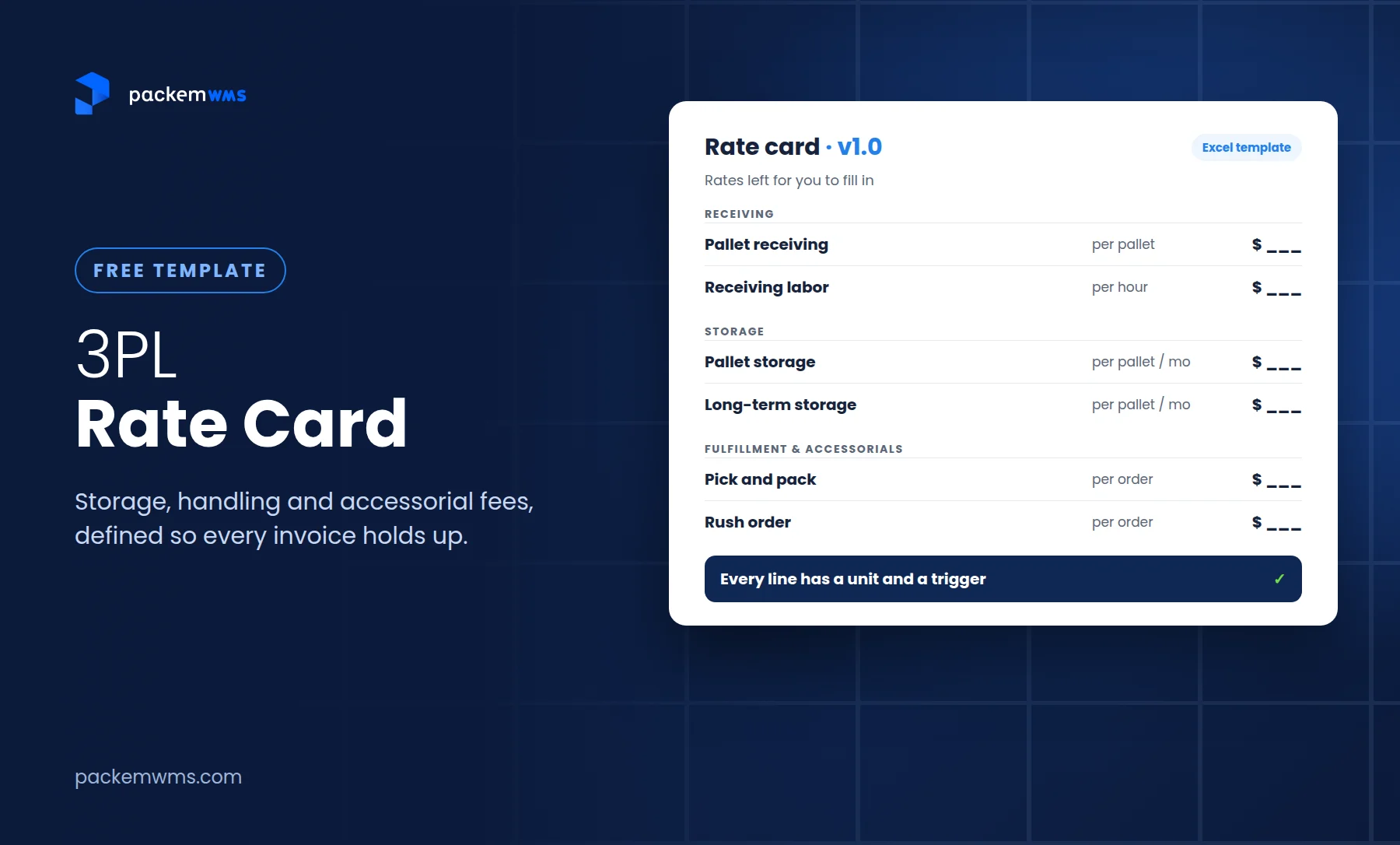
Multi-client rate card support: Each client has their own fee structure. Client A pays $15 per pallet per month for storage. Client B pays $0.50 per pick. Client C has a flat receiving fee plus a per-carton charge. A real integration pushes each client’s specific charges to the right QuickBooks line items, not a generic invoice total.
Bidirectional sync: The best integrations are two-way. Payments recorded in QuickBooks reflect against open invoices. The two systems stay in agreement without anyone manually pushing data between them.
If a WMS only syncs inventory counts or requires you to manually trigger an export, it is a workaround dressed up as a feature.
QuickBooks Online vs QuickBooks Desktop: which does your WMS support?
This is a practical question that trips up buyers during WMS evaluations.
QuickBooks Online (QBO) is the cloud-based version. It runs in a browser, requires a monthly subscription, and uses a modern REST API that WMS vendors can connect to with minimal friction. QuickBooks Desktop is the installed, Windows-based version. It runs locally on a PC and uses an older SDK that requires a local connection to the Desktop installation.
Most modern WMS platforms support QBO only. They have dropped or never built QuickBooks Desktop connectivity because the older SDK requires more engineering effort. If your 3PL is on Desktop, you have fewer WMS options. Confirm Desktop support explicitly during your evaluation, not just “QuickBooks support” in general.
Intuit’s own documentation outlines the differences between QBO and Desktop plan tiers. If you are considering migrating from Desktop to QBO, the accounting features are largely equivalent at the QBO Plus or Advanced tier, but the migration takes planning.
PackemWMS supports both QuickBooks Online and QuickBooks Desktop, which is uncommon at the $750–$1,800/month price point. If your 3PL is on Desktop and not ready to migrate, you can go live with PackemWMS now and switch on your own schedule.
Common pitfalls: shallow connectors and manual reconciliation
Before you sign a WMS contract, it is worth understanding the failure modes you are trying to avoid.
Middleware connectors: Some WMS platforms connect to QuickBooks through a third-party tool such as Celigo or Zapier. This adds cost ($100–$300/month on top of your WMS subscription), adds a failure point if the connector goes down, and means troubleshooting three systems instead of two when something breaks.
One-way sync: Some integrations only push data from the WMS to QuickBooks, not back. Payments entered in QuickBooks do not reflect in the WMS. You end up reconciling manually regardless.
Batch sync delays: Hourly or daily batch syncs mean QuickBooks data can be hours out of date. Usually acceptable for billing, but it creates problems when you need current data during a busy period.
ShipHero’s workaround: G2 reviewers of ShipHero note that QuickBooks reconciliation requires manual steps. ShipHero connects to QuickBooks via a third-party connector, not natively, and is designed for DTC fulfillment rather than multi-client 3PL billing.
Extensiv’s connector requirement: Extensiv does not include native QuickBooks integration. A separate connector adds to the total cost of ownership.
Understanding these failure modes before you sign makes it easier to ask the right questions during demos.
How to set up QuickBooks integration in PackemWMS
PackemWMS ships with native QuickBooks connectivity included in all subscription tiers. No connector fees, no third-party middleware. Here is how setup works:
-
Connect your QuickBooks account: In PackemWMS settings, navigate to the integrations panel and select QuickBooks. For QBO, authorize PackemWMS using your Intuit credentials (OAuth). For Desktop, install the PackemWMS Desktop connector on the Windows machine running QuickBooks and complete the authorization flow.
-
Map your chart of accounts: PackemWMS displays your QuickBooks chart of accounts and prompts you to map each fee type to the correct account. Storage fees, pick and pack fees, receiving fees, kitting fees, and any custom charges each get assigned to the appropriate revenue or income account. This mapping drives how line items appear on QuickBooks invoices.
-
Map your clients to QuickBooks customers: PackemWMS shows your client list and prompts you to match each client to the corresponding customer record in QuickBooks. For new clients, PackemWMS can create the QuickBooks customer record automatically. For existing clients, you confirm the match.
-
Configure your billing cycles: Set the billing period (weekly, twice monthly, monthly) for each client in PackemWMS. This determines when invoices generate and sync. Most 3PLs run monthly billing, but you can configure per-client schedules.
-
Run a test sync: Before going live, generate a test invoice for one client and verify it appears correctly in QuickBooks with the right line items, account assignments, and client name. Confirm the amounts match the rate card in PackemWMS.
-
Activate and monitor: Enable live syncing. After the first real billing cycle, review the invoices in QuickBooks to confirm they match the PackemWMS billing summary. The sync logs in PackemWMS show the status of each invoice push so you can catch any errors immediately.
Setup typically takes two to four hours, including the account mapping and test run. Most PackemWMS customers complete it as part of the standard implementation process.
For a full walkthrough of available PackemWMS integrations beyond QuickBooks, the integrations directory covers Shopify, WooCommerce, Amazon, EDI, and shipping carriers. The WMS integration guide covers broader system connectivity principles if you are planning a multi-system setup.
QuickBooks integration vs full ERP: when WMS + QB is enough
A common question from 3PLs evaluating their tech stack: do you need a full ERP, or is WMS + QuickBooks enough?
For most small-to-mid 3PLs, the answer is WMS + QuickBooks. A full ERP (NetSuite, SAP, Microsoft Dynamics) bundles warehouse management with accounting, HR, procurement, and CRM. That breadth comes at significant cost. NetSuite licensing alone typically runs $1,000–$5,000/month before user fees, and implementation takes six to 12 months.
For a 3PL doing $2M–$10M in annual revenue, that is overkill. QuickBooks handles invoicing, payroll, and tax reporting. A WMS like PackemWMS handles multi-client warehouse operations. The native integration between them creates a connected system at a fraction of ERP cost.
The calculation changes when a 3PL is managing hundreds of clients across multiple facilities and needs consolidated financial reporting at scale. At that point, a full ERP may make sense. For everyone else, WMS + QB is the practical choice.
You can review the billing and invoicing features that make this combination work at the 3PL scale.
What to evaluate before committing
Before signing any WMS contract where QuickBooks integration matters to your operation, work through these questions:
Is the integration native or via a third-party connector? If they mention Celigo, Zapier, or a “connector,” it is middleware. Factor in the additional cost.
Does it support multi-client billing with custom rate cards? This is the core 3PL use case. If the integration only syncs inventory counts, it does not cover your billing workflow.
Does it support both QuickBooks Online and Desktop? If you are on Desktop, confirm explicitly and request a live demo of the Desktop connection specifically.
What is the sync direction and frequency? Bidirectional, near-real-time sync is ideal. One-way or batch sync means ongoing reconciliation work.
Is QuickBooks integration included in the base subscription? Some platforms charge extra. PackemWMS includes it at all tiers.
Who handles it when the sync breaks? If the connection is via middleware, confirm in writing whether the WMS vendor or the middleware vendor is responsible for fixing it.
Frequently asked questions
Does my WMS need to integrate with QuickBooks?
If your 3PL uses QuickBooks for accounting and invoices clients for warehouse services, yes. Without integration, you are manually exporting billing data and importing it to QuickBooks each billing cycle. For a 3PL with more than a few clients, that process costs several hours per month and introduces reconciliation errors.
What’s the difference between QuickBooks Online and QuickBooks Desktop?
QuickBooks Online is the cloud-based version with a monthly subscription. QuickBooks Desktop is the installed, Windows-based version. Most WMS platforms support QBO only. PackemWMS supports both. Confirm Desktop support explicitly during any WMS evaluation if your 3PL has not yet migrated.
Can I sync 3PL invoices to QuickBooks automatically?
Yes, if your WMS has native 3PL billing integration with QuickBooks. PackemWMS generates invoices automatically at billing cycle close based on per-client rate cards, then pushes them to QuickBooks under the correct customer records. No manual export or import required.
How do I set up QuickBooks integration in PackemWMS?
Connect your QuickBooks account from the PackemWMS integrations panel, map your chart of accounts to the appropriate fee types, match your clients to QuickBooks customer records, configure billing cycles, and run a test sync. Most customers complete setup in two to four hours during onboarding.
What does chart of accounts mapping mean for a 3PL?
It tells your WMS which QuickBooks account to post each fee type to. Storage fees go to a storage revenue account. Pick and pack fees go to a services revenue account. Without mapping, all fees may land in a generic income account, which creates work for your bookkeeper at month-end close.
Ready to automate your 3PL billing and QuickBooks sync?
QuickBooks integration for 3PL WMS is the difference between a billing workflow that runs automatically and one that eats hours every month. The key is native integration that covers multi-client invoicing, chart of accounts mapping, and bidirectional sync, not a middleware connector that adds cost and complexity.
PackemWMS includes native QuickBooks integration in all plans, supports both QBO and Desktop, and handles the full 3PL billing workflow from rate card to QuickBooks invoice without manual steps.
Schedule a demo at packemwms.com/request-demo to see the QuickBooks sync in action with your actual billing structure. Pricing is published and starts at $750/month with no per-client or per-user fees.